


Tree crews,one app.
A field-operations app for a tree-care company of ISA and Utility Certified Arborists: crews pick up tasks, assign work, track equipment and log maintenance from one login, designed for iOS and Android.

Built for the crew, not the back office
Field work does not happen at a desk, so the app is designed phone-first around the three things a crew actually touches: the tasks they own, the equipment they run, and the record of who did what. Everything opens two taps from the home screen.
A task board at the centre
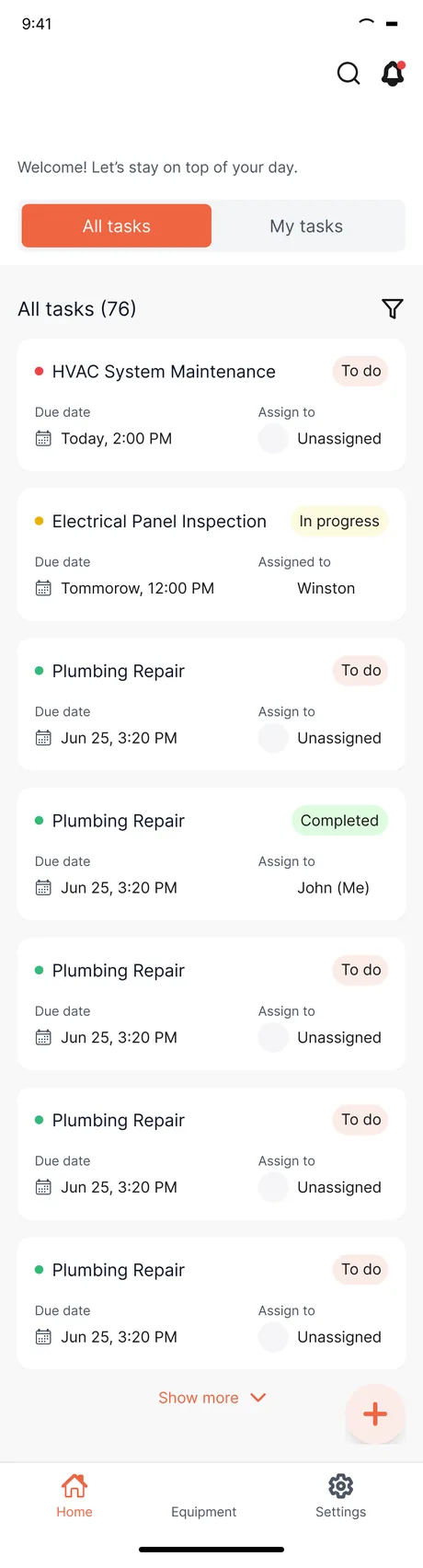
The home screen is a live task list with All-tasks and My-tasks views, a status on every card and a filter, so a worker sees exactly what is theirs today.
Equipment that carries its own history
Each asset holds its category, service dates, hours, documentation and a running maintenance log, so a machine's story travels with it instead of living in someone's memory.
Comments and history on every job
Task detail keeps a threaded comment feed and a full change history, so an update from the field is captured against the work rather than lost in a text message.
Why does a tree-service crew need its own app?
Tree work is dispersed, physical and equipment-heavy. The information a crew needs is exactly the information a desktop back office loses: what is assigned right now, whether a machine is due for service, and what happened on site.
Three things follow from that: the job happens on a truck or in a canopy, not at a desk; equipment cannot quietly lapse out of service; and with crews split across sites, accountability has to stay legible on every task.
screens across the full design — every empty, filled and error state included.
What the app had to get right for a crew in the field
A phone in a gloved hand, on a truck or under a canopy — the whole design starts from that constraint.
Two taps from the truck
- Open two taps from home — the task board, a job, or the equipment register.
- Assign and prioritise — an assignee and a due date set before work starts.
- Track equipment properly — service dates, hours, documentation and a maintenance log.
- Keep every update on record — job photos, comments and a full change history.
Why it was hard
- The whole experience has to work one-handed, in the field, not at a workstation.
- Grinders, lifts and saws need scheduled service tracked without a spreadsheet nobody opens.
- With crews split across sites, ownership of a task has to be legible at a glance.
- The full design runs to well over a hundred screens, including every empty, filled and error state.
How does a job move through the app?
The app follows the real shape of field work: someone raises and assigns a job, a crew member works it on site, and it is closed with a record attached.
- 01Dispatch
Raise and assign
A task is created with a due date, priority and an assignee pulled from the crew, so ownership is set before the work starts.
- 02Crew
Work it on site
The assignee opens the job from their My-tasks view, sees the linked equipment and description, and adds photos and comments as the work happens.
- 03Record
Close with a record
The status moves to complete and the change history and equipment maintenance log keep a durable record of what was done.
What does the app look like in the hand?
These are the real screens, drawn phone-first. The flow runs from login to a task board, into a job with its photos and comments, and across to the equipment register.
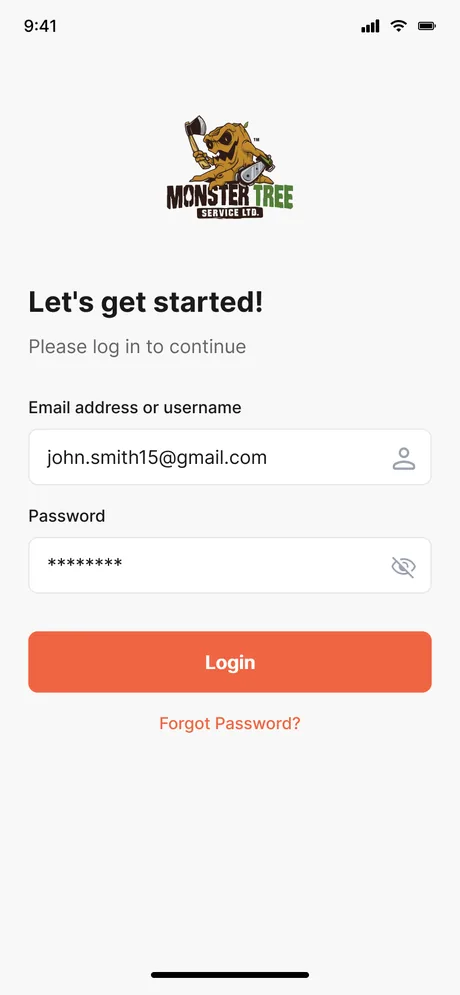
A branded login with password reset and verification, so a crew member is one tap from their day.
All tasks and My tasks, each card carrying a status, due date and assignee, with a filter to narrow the list.
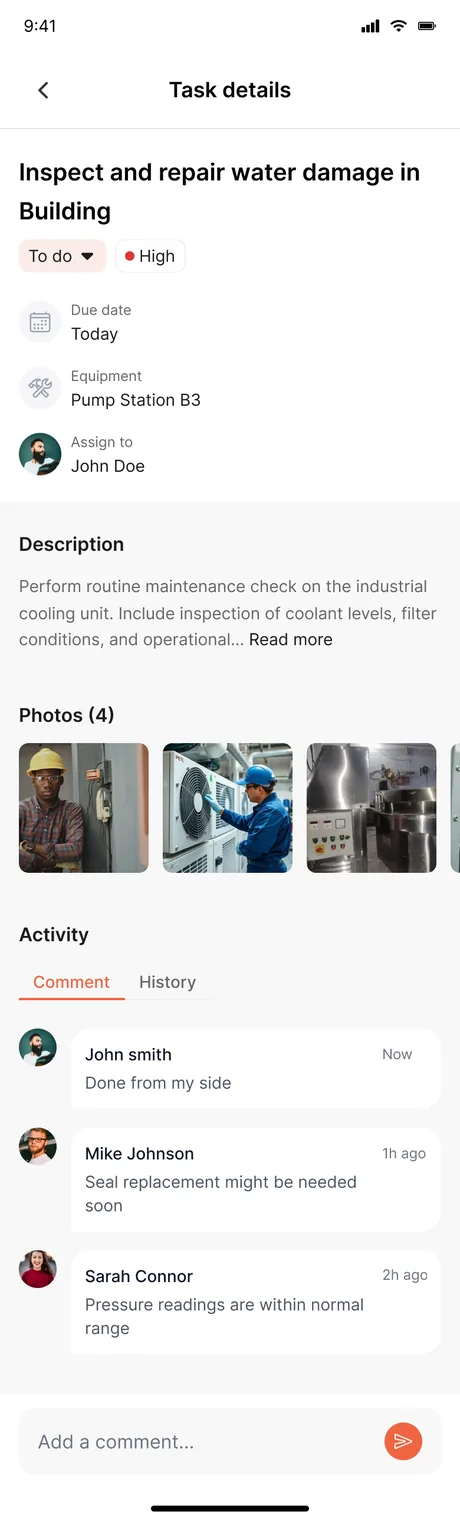
Status, priority, due date, linked equipment, job photos and a comment-and-history feed on one screen.
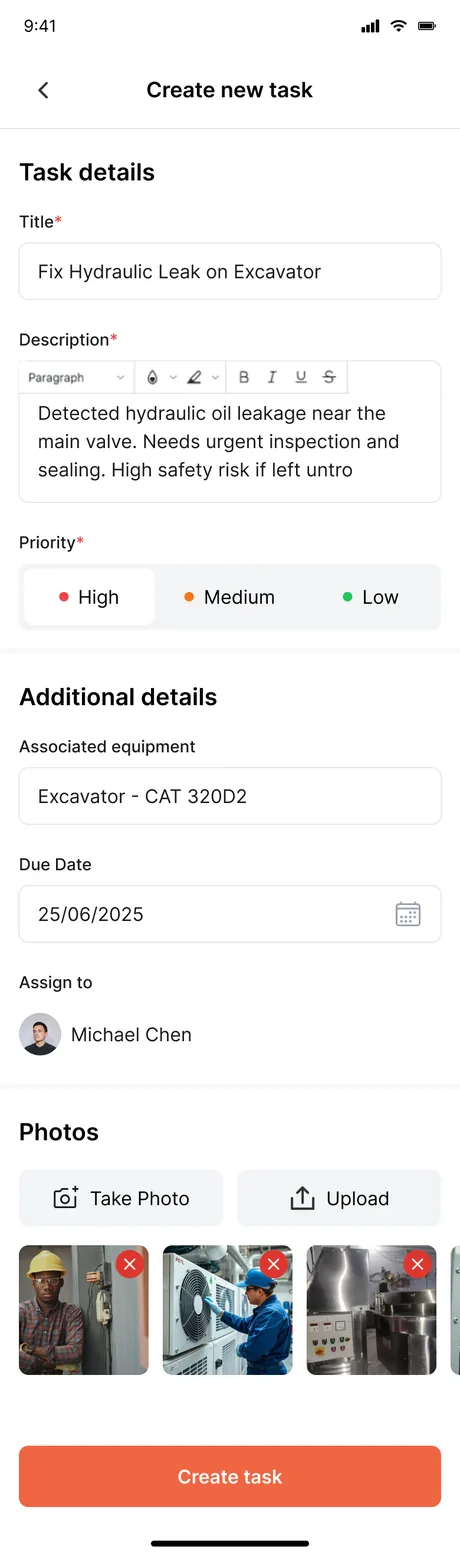
A new job is raised with an assignee, due date and priority in a single guided form.
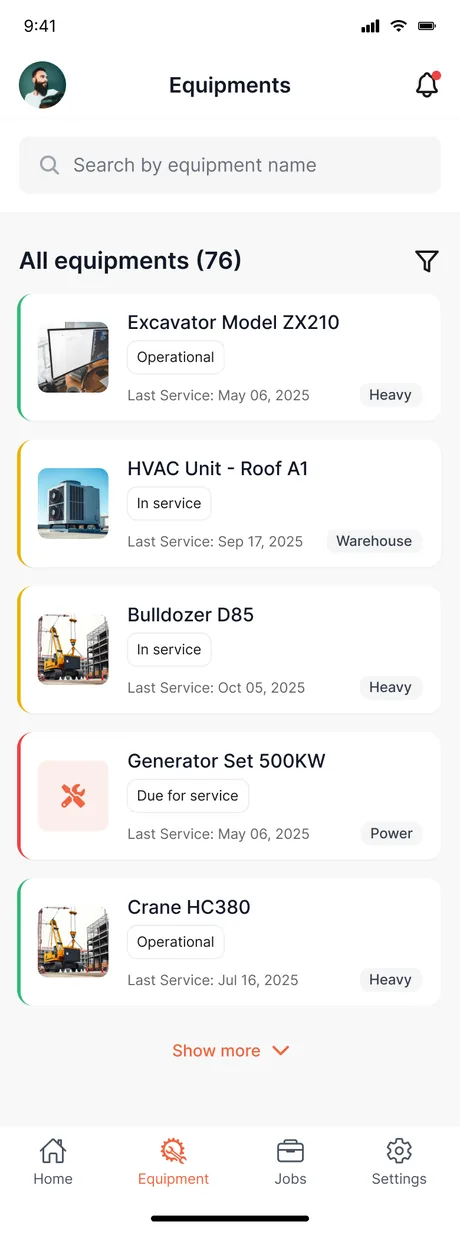
The asset register at a glance, ready to open into a machine's full record.
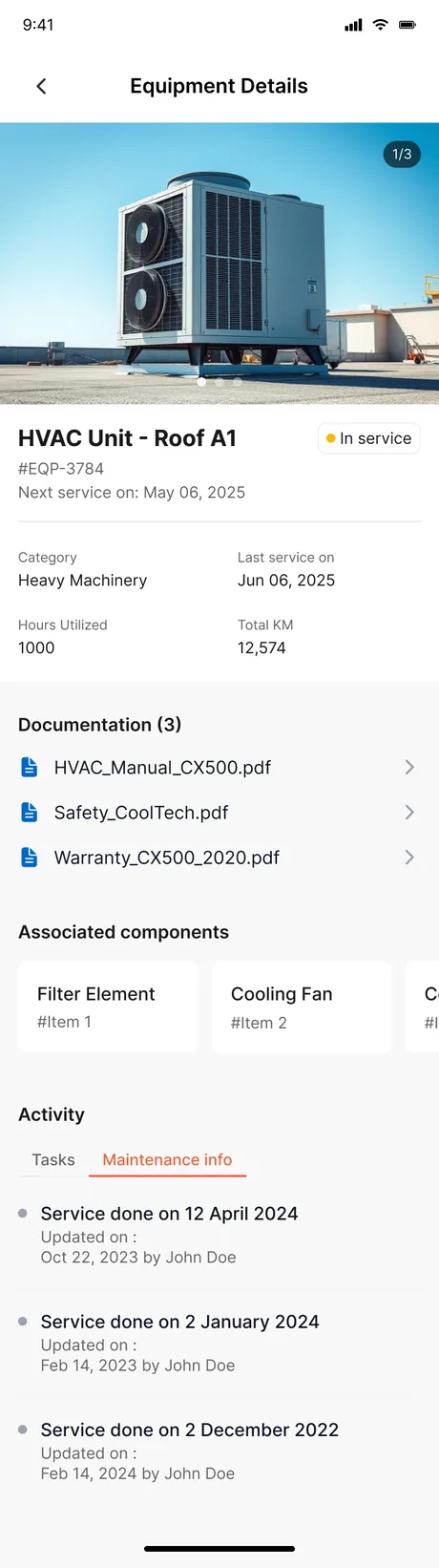
Category, service dates, hours, documentation, associated components and a full maintenance log.
What does the app look like, and why?
A single warm coral is reserved for the primary action on every screen, so a gloved thumb always knows where to tap. Ink and a calm grey scale carry the dense task and equipment data, and a green frames the brand around the tree-service identity.
Building a field-service mobile app
What does a field-service app like Monster Tree's do?
Why build it as a mobile app rather than a website?
How long does it take to build a field-operations app like this?
Does the app track equipment maintenance?
Can more than one crew member work the same jobs?
Have field crews running on clipboards and group chats?
Tell us how your business actually works and we'll tell you honestly what it takes to build — the task board, the equipment log, the lot. No deck, no pitch.